If or Excel is a common search term used by people who want to learn the IF function in Microsoft Excel. The IF function helps you make decisions based on conditions. It checks whether something is true or false and then returns a result.
Excel users rely on the IF function every day. It helps organize data, automate calculations, and reduce manual work. Whether you manage budgets, student records, or sales reports, the IF function can save time.
The best part is that the IF function is easy to learn. Even beginners can start using it within minutes. In this guide, you will learn what the IF function is, how it works, and how to use it with real examples. By the end, you will feel confident using IF formulas in your spreadsheets.
Quick Summary Box
- IF is a logical function in Excel.
- It checks whether a condition is true or false.
- Formula structure: =IF(condition, value_if_true, value_if_false)
- Helps automate decisions in spreadsheets.
- Commonly used for grades, sales targets, and budgeting.
- Can be combined with AND, OR, and other Excel functions.
- Suitable for beginners and advanced users.
What Is the IF Function in Excel?
The IF function is one of Excel’s most useful logical functions.
It allows Excel to make decisions based on conditions.
Basic Syntax
=IF(logical_test, value_if_true, value_if_false)
Example
=IF(A1>=50,”Pass”,”Fail”)
This formula checks if the value in A1 is 50 or more.
- If true, Excel returns “Pass.”
- If false, Excel returns “Fail.”
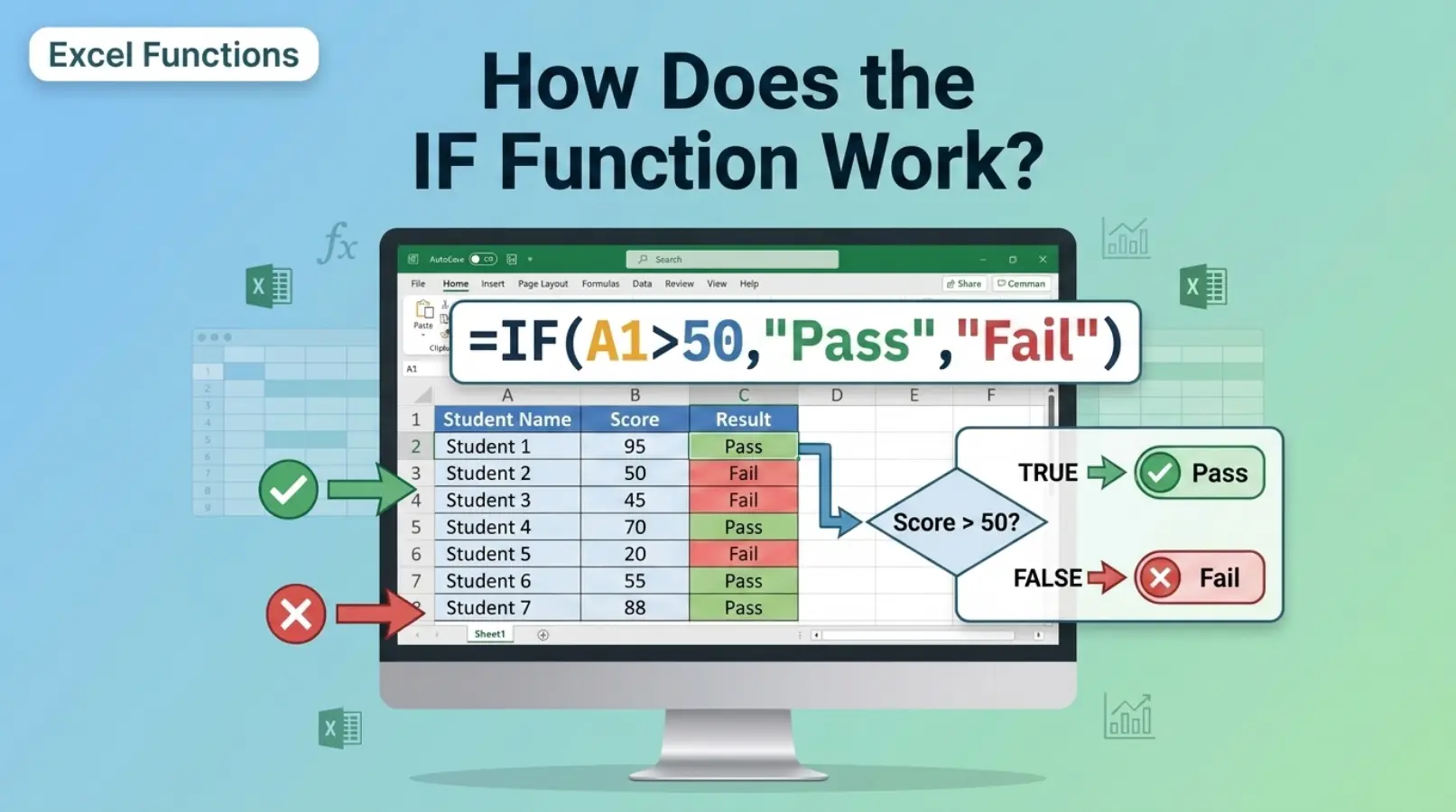
How Does the IF Function Work?
The IF function follows a simple process.
- Excel checks the condition.
- If the condition is true, it returns one result.
- If the condition is false, it returns another result.
Example
Suppose a student scores 80 marks.
Formula:
=IF(B2>=60,”Passed”,”Failed”)
Result:
- 80 ≥ 60 = True
- Output = Passed
This makes reporting much easier.
Why Is the IF Function Important?
The IF function helps users automate decisions.
Benefits
- Saves time
- Reduces errors
- Improves productivity
- Makes reports dynamic
- Supports complex calculations
Many businesses use IF formulas daily for financial and operational reports.
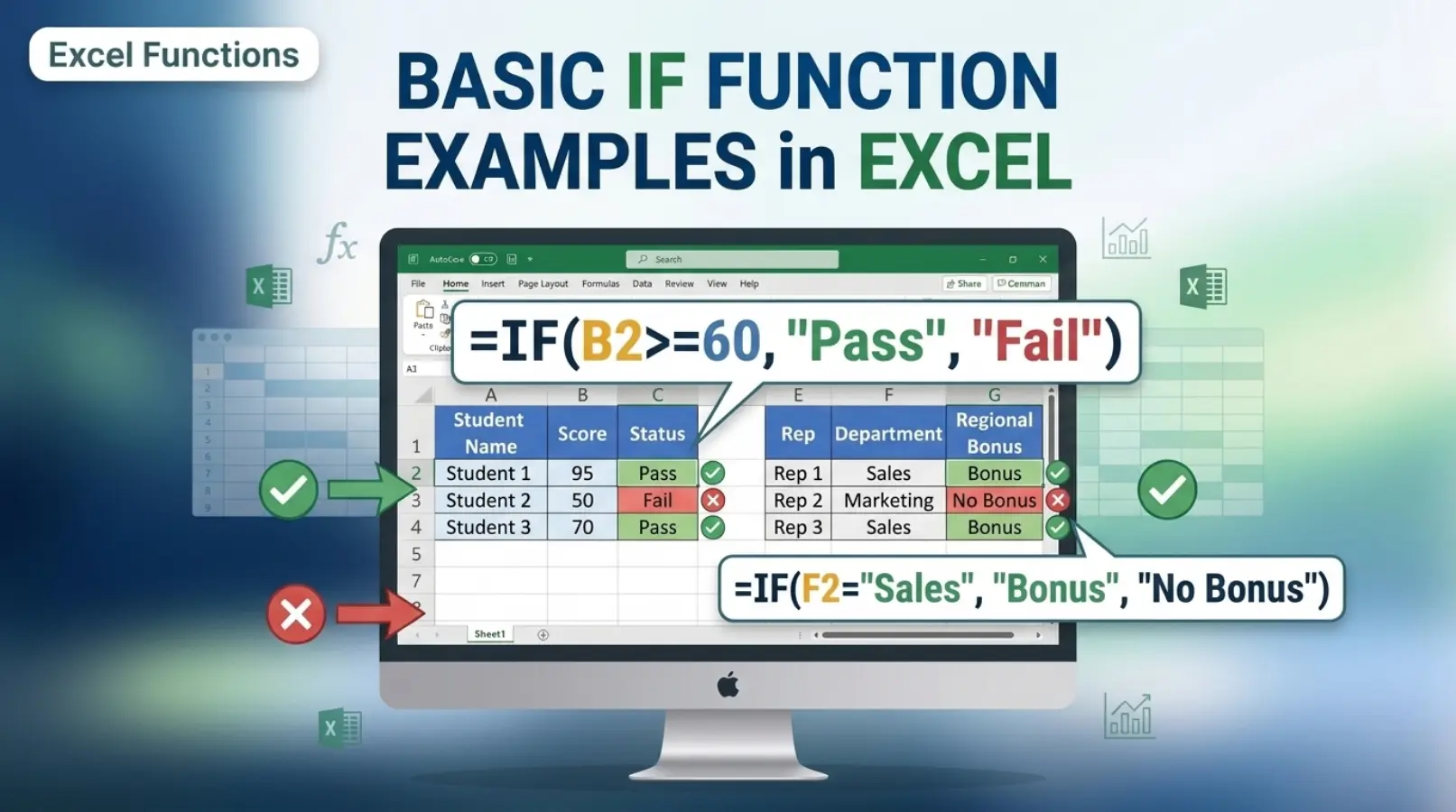
Basic IF Function Examples
Example 1: Student Grades
=IF(A2>=50,”Pass”,”Fail”)
Example 2: Sales Bonus
=IF(B2>=10000,”Bonus”,”No Bonus”)
Example 3: Attendance Status
=IF(C2>=75,”Eligible”,”Not Eligible”)
These simple formulas help automate routine tasks.
IF Function Comparison Table
| Feature | IF Function | Manual Checking |
| Speed | Fast | Slow |
| Accuracy | High | Depends on user |
| Automation | Yes | No |
| Scalability | Excellent | Limited |
| Error Reduction | Strong | Weak |
| Data Handling | Large datasets | Small datasets |
The IF function clearly offers better efficiency.
Using IF with Numbers
Numbers are the most common use case.
Greater Than
=IF(A1>100,”High”,”Low”)
Less Than
=IF(A1<100,”Below Target”,”On Target”)
Equal To
=IF(A1=100,”Exact”,”Different”)
These formulas help evaluate numerical data instantly.
Using IF with Text Values
You can also compare text.
Example
=IF(A1=”Yes”,”Approved”,”Pending”)
Excel checks whether the cell contains the word “Yes.”
This is useful for surveys and forms.
Nested IF Functions Explained
A nested IF contains another IF function inside it.
Example
=IF(A1>=90,”A”,
IF(A1>=80,”B”,
IF(A1>=70,”C”,”D”)))
Result
| Score | Grade |
| 95 | A |
| 85 | B |
| 75 | C |
| 60 | D |
Nested IF statements help classify data into multiple categories.
IF Function with AND
The AND function checks multiple conditions.
Example
=IF(AND(A1>=50,B1>=50),”Pass”,”Fail”)
Both conditions must be true.
Real-Life Scenario
A student must pass both Math and English.
If either score is below 50, the result becomes “Fail.”
IF Function with OR
The OR function requires only one condition to be true.
Example
=IF(OR(A1>=90,B1>=90),”Award”,”No Award”)
If either score reaches 90, the student receives an award.
Common Uses
- Scholarship eligibility
- Sales targets
- Performance evaluations
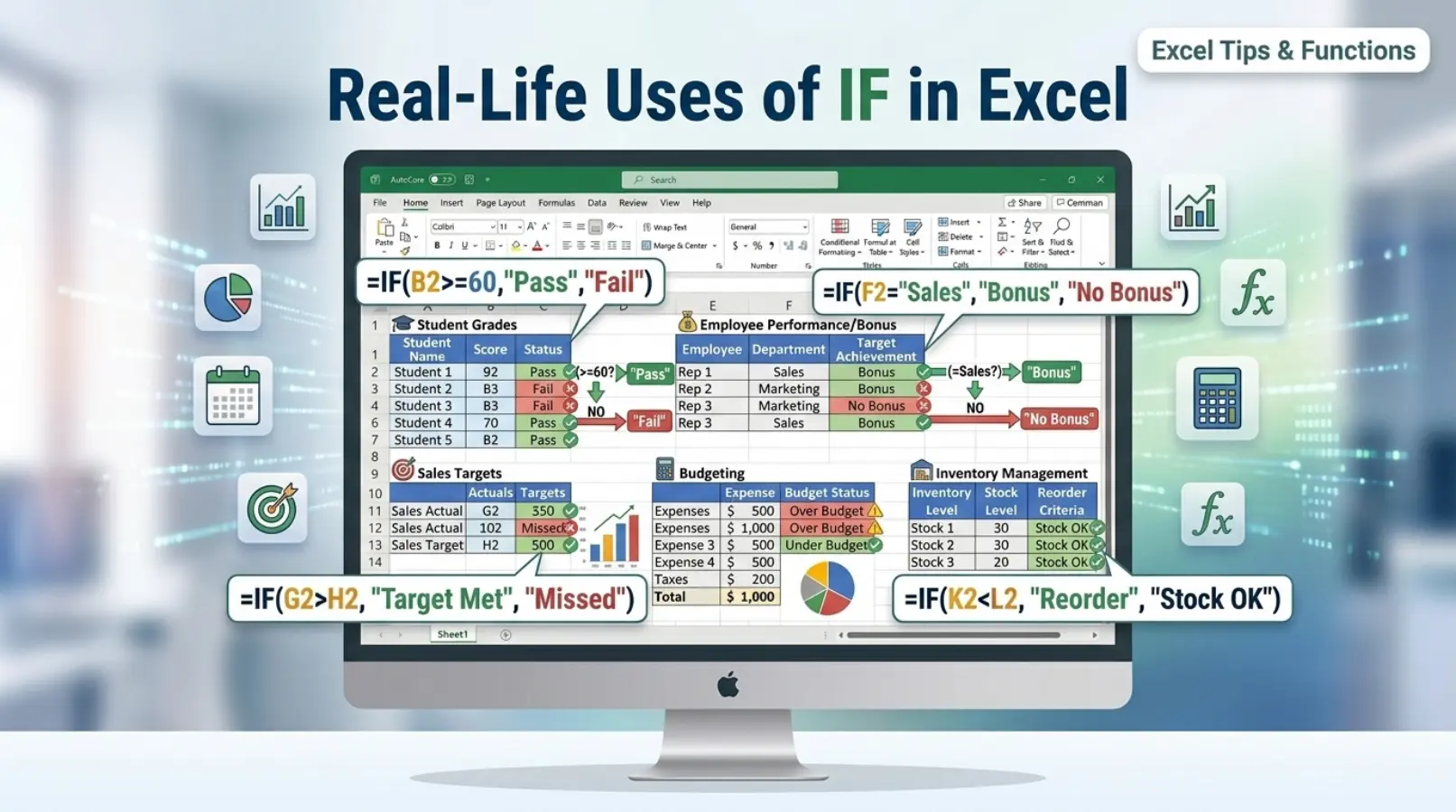
Real-Life Uses of IF in Excel
The IF function appears in many industries.
Education
- Grade calculations
- Attendance tracking
- Student evaluation
Business
- Sales analysis
- Bonus calculation
- Inventory management
Finance
- Budget monitoring
- Expense tracking
- Profit analysis
Human Resources
- Employee performance reviews
- Leave eligibility
- Payroll calculations
Common Mistakes When Using IF in Excel
Many beginners make small mistakes.
1. Missing Quotes
Wrong:
=IF(A1=Yes,Approved,Pending)
Correct:
=IF(A1=”Yes”,”Approved”,”Pending”)
2. Incorrect Parentheses
Always close all parentheses.
3. Wrong Logical Operators
Use:
- <
- =
- <=
- =
Correctly.
4. Too Many Nested IFs
Complex formulas become difficult to manage.
Consider using IFS or lookup functions.
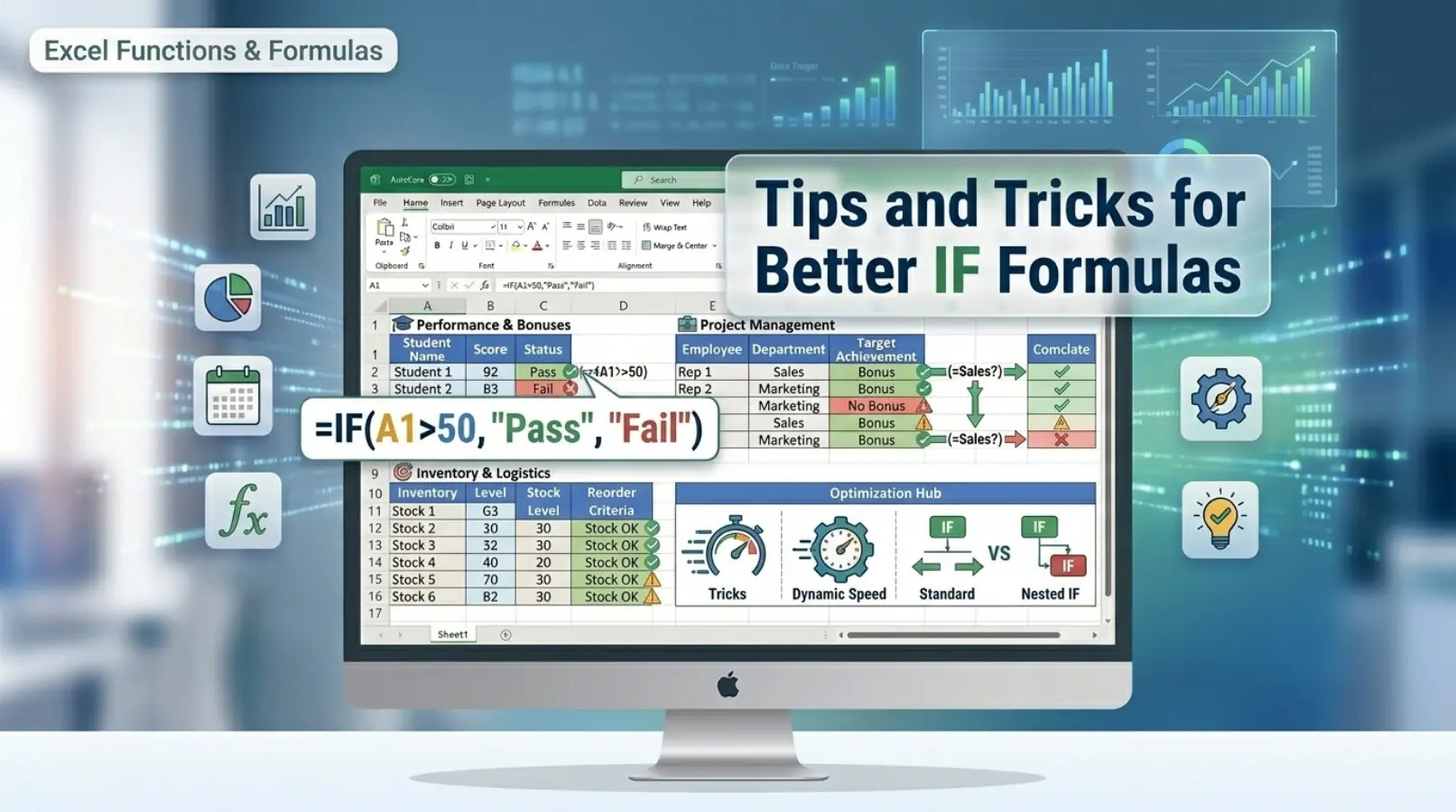
Tips and Tricks for Better IF Formulas
Keep Formulas Simple
Simple formulas are easier to troubleshoot.
Use Named Ranges
Named ranges improve readability.
Combine Functions
Use IF with:
- AND
- OR
- COUNTIF
- SUMIF
- VLOOKUP
- XLOOKUP
Test Small Data First
Verify formulas before applying them to large datasets.
Expert Insights: Why the IF Function Matters
Excel experts consider the IF function essential.
It forms the foundation of spreadsheet automation.
Organizations use it to make quick decisions from large datasets.
Learning IF improves:
- Data analysis skills
- Reporting accuracy
- Productivity
- Spreadsheet management
Professionals who master IF often learn advanced functions more quickly.
The IF function acts as a gateway to advanced Excel formulas.
Frequently Asked Questions (FAQs)
What is the IF function in Excel?
The IF function checks a condition and returns different results for true or false outcomes.
What is the basic IF formula?
=IF(condition,value_if_true,value_if_false)
Can I use multiple conditions in IF?
Yes. Use IF with AND or OR functions.
What is a nested IF?
A nested IF contains one IF formula inside another.
Is there a limit to nested IF statements?
Modern Excel versions support many nested levels, but simpler formulas work better.
What is the difference between IF and IFS?
IF handles one condition at a time. IFS handles multiple conditions more efficiently.
Can IF work with text values?
Yes. You can compare text strings using quotation marks.
Why does my IF formula show an error?
Common causes include missing quotes, incorrect syntax, or unmatched parentheses.
Conclusion
The if or excel topic mainly refers to understanding and using Excel’s IF function. This powerful feature allows users to automate decisions, evaluate conditions, and improve spreadsheet efficiency. From grading students to calculating bonuses, the IF function supports countless real-world tasks.
Beginners can start with simple true-or-false formulas. As skills improve, they can combine IF with AND, OR, and other advanced functions. The key is to keep formulas clear and test them carefully.
If you regularly work with spreadsheets, mastering the IF function is one of the best investments you can make. It saves time, reduces mistakes, and helps you build smarter Excel reports.